

How to populate the GA4 Data in Lead Acquisition and Qualification Reports
Lead Reporting - Elementor Forms
Create a Custom HTML Tag in GTM (Elementor Form Listener)
This tag will contain the JavaScript code that listens for Elementor’s successful form submission and pushes a custom event to the dataLayer.
Code to use (basic version):
<script>
jQuery( document ).ready(function( $ ){
    jQuery( document ).on('submit_success', function(event){
        // Push a custom event to the dataLayer
        window.dataLayer = window.dataLayer || [];
        window.dataLayer.push({
            'event': 'elementorFormSubmitted'
        });
    });
});
</script>
The above code is your GTM custom HTML listener that will allow you to create a custom event trigger on ‘elementorFormSubmitted’ you can then create a GA4 event tag to send a generate_lead event through to GA4. This will result in the generate lead being populated.
If you use other forms – a similar process will be required. You may also want to generate lead from ‘click_to_email’ or calls – the exact actions you want to record are your choice, but the event must go through to GA4 as ‘generate_lead’ to populate the reports in Business Objective Reports and Life cycle Reports in the GA4 dashboard.
The other thing you absolutely have to do along with this event is assign a parameter ‘lead_id’
Qualified Lead And Converted Lead
A similar process is needed for qualified lead. This may be more tricky to implement if your CRM system – such as hubspot is not fully integrated with your site. A simple solution for WooCommerce users would be to fire a ‘qualified_lead’ along with events such as ‘add_to_basket’ or if you have a deposit or online T&Cs form this would also be an ideal scenario to trigger the event.
Finally you have ‘close_convert_lead’ and this should be fired upon purchase.
The above set of leads will populate the GA4 Lead Acquisition Report which can be found in the GA4 property under Business Objectives – Generate Leads – Lead Acquisition.
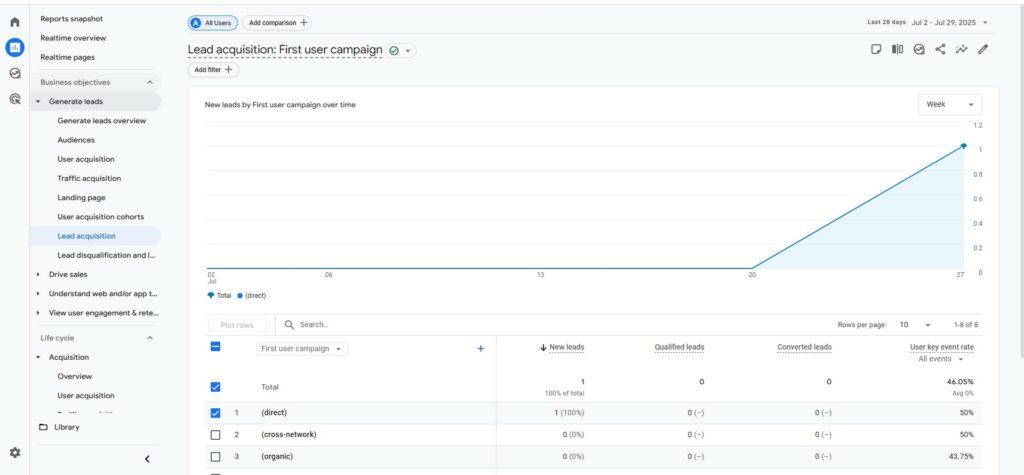
This report is also available in the Life cycle reports – Acquisition – Lead Acquisition.
If you are unsure on the firing sequences or the logic of sending these events I would recommend you take a look at GA4 new features the What and Why of Lead reporting.
Lead Events often need to fire at multiple times within the Lifecycle
You can also find a YouTube video on other GA4 Updates.
| Scenario | Fire qualified_lead? | Fire close_convert_lead? |
|---|---|---|
| First consult or product interest | ✅ Yes | Maybe (if they buy) |
| Second service/product (new funnel) | ✅ Yes | ✅ Yes |
| Repeat purchase or booking | – | ✅ Yes |
| Upgrade from trial to full | – | ✅ Yes |
| Same user months later, new enquiry | ✅ Yes (again) | ✅ Yes (if closed again) |
As you can see from the above table the lead events are relevant at multiple points in the sales funnel and client Lifetime.
Before you get too involved in the below topic explorations you may wish to download a .csv file that allows an upload to GA4 in relation to the lead qualification events, parameters and reporting.
Lead_ID and client_ID
What is client_id in GA4?
-
Definition: The
client_idis a unique, randomly generated identifier that GA4 automatically assigns to each unique browser-device combination. It’s stored in a first-party cookie (usually_ga) in the user’s browser. -
Purpose: Its primary purpose is to identify returning visitors and sessions on the same device and browser. It helps GA4 understand if a current visit is from someone who has been to your site before on that specific browser/device.
-
Persistence: The
_gacookie (and thus theclient_id) by default can persist for up to 2 years, but modern browser privacy features (like ITP in Safari or ETP in Firefox) often significantly reduce this to 7 days or even 24 hours. -
Limitations:
-
Device/Browser Specific: If a user switches from their phone to their desktop, or from Chrome to Firefox on the same device, they will have a different
client_idfor each instance. GA4 will count them as separate users. -
Cookie Deletion: If a user clears their cookies, their
client_idis lost, and they’ll be assigned a new one on their next visit, appearing as a “new user.” -
Not Transferable to CRMs:
client_idis designed for web analytics within the browser environment. It’s not automatically passed or stored in your CRM.
-
Why client_id is NOT your lead_id for CRM integration:
You’re trying to track a lead through a lifecycle that spans online (website) AND offline (CRM) interactions.
-
A
client_idtells you “this specific browser on this specific device visited these pages.” -
A
lead_id(oruser_id) tells you “this person (who may use multiple devices/browsers) is now at this stage in our sales funnel in the CRM.”
There’s no automatic mechanism that takes the client_id from a browser cookie and deposits it into a custom field in your CRM when a form is submitted or a lead is created. Platforms such as HubSpot do manage and match many events and therefore a Lead ID system here is easy to implement. Using APIs like Zapier also manage this element.
How GA4 Tries to Match Users
Beyond client_id (and why lead_id is still needed for CRM)
GA4 has “Reporting Identity” which tries to stitch together user journeys using a hierarchy:
-
User-ID (Most Accurate): This is your unique, persistent, non-PII identifier for a logged-in user (e.g., their internal customer ID from your database). You manually send this to GA4. If you implement User-ID, GA4 will prioritize it to de-duplicate users across devices and sessions.
-
Google Signals: If enabled, this uses data from users who are signed into their Google accounts and have ads personalization enabled. It helps with cross-device tracking for a subset of your audience.
-
Device ID (
client_idfor web): The fallback, as explained above. -
Modeling: For users who deny analytics cookies, GA4 uses machine learning to model their behavior based on similar users who did consent.
Even with User-ID or Google Signals, you still need a lead_id for CRM integration:
-
User-ID is great for authenticated users. But what about leads who haven’t logged in yet but fill out a form? They’re still anonymous from a User-ID perspective.
-
Your
lead_idis a custom identifier you create to track that specific lead from website touchpoint (e.g.,generate_lead) through your CRM, regardless of their login status or device. It’s the bridge between GA4’s web data and your CRM’s lead data.
The Best Practice
For generate_lead and subsequent qualify_lead/disqualify_lead events to accurately reflect a lead’s journey across your website and CRM:
-
Generate a custom
lead_idon your website. This is a unique string (like a UUID) created at the point of lead generation (e.g., form submission). -
Pass this
lead_idto GA4 as a parameter with thegenerate_leadevent (and potentiallyclient_idif you want to link thelead_idto the web-centricclient_idin BigQuery). -
Pass this
lead_idto your CRM by embedding it in a hidden field in your form. -
Ensure CRM can store this
lead_idin a custom field on the lead record. -
Use this stored
lead_idwhen you later sendqualify_leadordisqualify_leadevents back to GA4 (via CSV import or Measurement Protocol).
While client_id is fundamental for web analytics, it doesn’t automatically solve the cross-system lead tracking problem. Your custom lead_id is the key to building that holistic view.
Now, you may also be thinking now – “I’m sure I have read on this site before that GA4 is capable of cross platform and cross-device matching. And yes, you’d be right and yes it does. However, this element is not delivered via the client_id…
GA4’s Reporting Identity
How it does Cross-Device Matching.
GA4 uses a concept called “Reporting Identity” to determine how it stitches together user data. You can configure this in your GA4 Admin settings under “Data Display” -> “Reporting Identity.” It uses a hierarchy of up to four “identity spaces” (or signals) to identify users across devices and sessions:
User-ID (Your Unique Identifier – Highest Priority):
What it is: This is a stable, non-personally identifiable ID that you assign to your users when they log in to your website or app. It’s an ID from your own internal systems (e.g., a customer ID from your database).
How it works for cross-device: If a user logs in on their phone, then later logs in on their desktop, and you send the same
user_idto GA4 with both sessions, GA4 will recognize them as the same user across those devices.Key takeaway: This is the most accurate method for cross-device tracking because you are providing the definitive identifier for a known user. This is what you’re trying to replicate with your
lead_idfor anonymous leads that enter your CRM.
Google Signals:
What it is: Data from users who are signed into their Google accounts and have enabled Ads Personalization. Google has a massive graph of user behavior across devices.
How it works for cross-device: For users who meet these criteria, Google can probabilistically link their sessions across different devices (e.g., if a user searches on Google on their phone, clicks an ad, visits your site, and then later completes an action on your site on their desktop while logged into the same Google account, Google Signals might connect those sessions).
Limitations:
Only works for users logged into a Google account and who have consented to Ads Personalization. This is a subset of your audience.
Data can be subject to thresholding (Google might hide data if user counts are too low to preserve privacy of Google’s proprietary data).
It’s Google’s “black box” modeling; you don’t control the logic.
Device ID (
client_idfor web, App-Instance ID for apps):What it is: This is the
client_idwe discussed earlier – a unique identifier assigned to a specific browser-device combination, stored in a first-party cookie.How it works for cross-device: It largely doesn’t work for cross-device. If the user switches devices or browsers, they get a new
client_id. This is why GA4 needs User-ID or Google Signals to truly understand a single user across multiple devices.Persistence: Limited by cookie lifespan and browser privacy features.
Modeling:
What it is: When GA4 doesn’t have enough direct data from the above identifiers (e.g., due to consent denial, cookie blocking, or users not logging in/having Google accounts), it uses machine learning to estimate user behavior based on similar users who do have observable data.
How it works for cross-device: It tries to infer cross-device journeys, but it’s an estimate, not direct observation.
Why Your lead_id is Still Essential
Even with GA4’s Cross-Device Capabilities an External or disperate CRM system is going to require some steps to resolve properly
Here’s the crucial distinction for a case use with an external CRM and booking process:
GA4’s cross-device matching (User-ID, Google Signals, Modeling) is primarily about understanding user behavior within the GA4 ecosystem (website/app data).
Your
lead_idis about bridging the gap between GA4’s data and your external CRM data.
Example:
A user visits your site on their mobile (gets
client_id_mobile). They submit a form and get assigned alead_id_XYZwhich is also sent to the external CRM.Later, a salesperson in the CRM is able to process
qualify_leadforlead_id_XYZ. This happens in the CRM, not directly on your website.Even if the user later logs into your website on their desktop (and now has
user_id_ABCandclient_id_desktop), GA4 might connectclient_id_mobileanduser_id_ABCinternally if you set up User-ID.BUT, GA4 has no automatic way to know that
lead_id_XYZin your CRM is the same person asclient_id_mobileoruser_id_ABCunless you explicitly tell it.
Your lead_id (or user_id if they log in) is the manual “glue” you create to connect a specific person (or lead record) with their web behavior in GA4 and their status in your CRM.
When you import
qualify_lead(ordisqualify_lead) events from your CRM via CSV, you are using yourlead_idto tell GA4: “Hey, thislead_idthat originated from my website (and which I stored in my CRM) just changed status.” GA4 then stitches that new event to the originalgenerate_leadevent using that commonlead_id.
So, while GA4 is much better at understanding a single user across devices than Universal Analytics was, it still relies on your implementation of User-ID (for logged-in users) or your consistent lead_id (for tracking leads through an external CRM) to get a truly complete, person-centric view that spans both your analytics and your sales/CRM systems.
What I would suggest as being an ideal solution is to provide an online T&Cs or onboarding form that has a reference or (original lead_id attached to the generate_lead event) This, upon submit, should populate GA4 as qualified_lead and your CRM simultaneously. Elementor Forms are directly compatible with external CRM systems utilising webhooks or platforms like Zapier.
Longer term, you should look at your CRM system and invest in your digitisation eco system if you are taking the majority of your bookings online.
Questions and Answers on the new Lead Reports in GA4 and the practical implementation of lead_id
Helpful (Top-Level) Information on the new lead reports in GA4.
- Clear Call to Action for “Business Objectives” Collection:
- Explicitly state that users must add the “Business Objectives” collection to their GA4 reports to see these new lead generation reports. This is a common point of confusion for users who might implement the events but then can’t find the reports.
- “Crucially, to access these new ‘Generate Leads’ reports, ensure the ‘Business Objectives’ collection is added to your GA4 property’s ‘Reports’ section via the Library. If you don’t see them, this is likely the missing piece.”
Questions relating to a WordPress (WP) platform and disperate lead generation, CRM and manual input business systems.
- Emphasis on CRM Integration (Beyond Website Forms):
- While you mention generate_lead for forms, the qualify_lead, disqualify_lead, working_lead, close_convert_lead, and close_unconvert_lead events often originate from CRM systems or offline activities. Stress the importance of integrating these external data sources with GA4, likely via:
- Measurement Protocol: This is the primary method for sending offline or server-side events to GA4.
- Data Import (CSV Uploads): For bulk, historical, or less real-time CRM updates.
- “For a truly comprehensive view of your lead funnel, especially for events like qualify_lead or close_convert_lead that often occur after initial website interaction, consider integrating your CRM system. This typically involves using the GA4 Measurement Protocol to send event data from your CRM to GA4, or leveraging Data Import for bulk updates.”
- While you mention generate_lead for forms, the qualify_lead, disqualify_lead, working_lead, close_convert_lead, and close_unconvert_lead events often originate from CRM systems or offline activities. Stress the importance of integrating these external data sources with GA4, likely via:
- The Importance of Event Parameters for Granularity:
- Briefly mention that these lead events gain much more value when accompanied by relevant parameters. For instance, disqualify_lead could have a reason parameter (e.g., “duplicate,” “not_a_fit,” “bad_data”).
- “Remember to leverage event parameters with these lead events (e.g., adding a reason parameter to disqualify_lead or a value and currency to close_convert_lead). This provides the granular detail needed for powerful analysis and segmentation within your new reports.”
- Testing and Validation (DebugView / GTM Preview):
- You mention testing for Consent Mode, but it’s equally critical for the lead events themselves.
- “After implementing these lead events, thorough testing is paramount. Utilise GA4’s DebugView and Google Tag Manager’s (GTM) Preview Mode to verify that your events are firing correctly with the right names and parameters, ensuring accurate data flows into your new reports.”
Questions relating to WP and the implementation of lead_id.
Q: Could you use unique_event_id as lead_id? A: Yes.
Q: …In order to have any automation in the lead_id it is essential to populate the form platform – Elementor etc.? A: Yes, to automate lead_id population in Elementor forms and send it to your CRM, you must use JavaScript to write the generated ID into a hidden field in the form.
Q: Are there currently (July2025) known forms that by-pass this and automatically send a unique event identifier on form_submit? A: Generally, no for cross-system lead_id linking.
- GA4’s Enhanced Measurement form_submit event: This automatically collects form_id and form_name. However, these are form identifiers, not a unique submission/lead identifier, and are not automatically passed to your CRM.
- Specialised plugins/integrations: Some very specific, advanced (often paid) WordPress/WooCommerce plugins or dedicated CRM integration tools might:
- Generate a unique ID internally for each submission.
- Make that ID available to GTM (via Data Layer).
- Ensure that ID is simultaneously passed to a connected CRM.
- These are not standard out-of-the-box features for Elementor, typical WordPress forms, or WooCommerce without additional configuration or specialised plugins/code.
- WooCommerce order_id: For purchases, the order_id (transaction ID) is automatically unique and available. If a “lead” is a “started checkout” or “completed purchase,” this can serve as the lead_id. However, it’s specific to sales transactions, not general form inquiries.
Q: Is the standard DLV – random number sometimes duplicated?
A: Yes, the standard GTM built-in “Random Number” variable can be duplicated and should not be used for unique lead identification. Use a UUID instead.
Q: I’ve only implemented the GTM JS script to create a variable and yet the DLV is populating with a number?
A: This is expected. Your GTM Custom JavaScript variable for UUID is working correctly and generating a value when GTM Preview loads. The issue is likely that this generated value isn’t yet being put into your hidden form field, or read from it correctly by another GTM variable.
Q: But couldn’t I return two variables – the random number or the UUID and timestamp?
A: Yes, you can return a UUID and a timestamp as separate parameters for your generate_lead event. The UUID should remain your primary lead_id.
Q: Why can’t you stitch them together to form one ID?
A: You can stitch them, but it’s generally not recommended for your primary lead_id due to:
- Increased collision risk (especially for timestamp resolution).
- Complexity in parsing and maintenance.
- It’s not a standard, robust unique identifier like a UUID.
And to set the DOM firing/timing to process this quicker?
To process faster:
- Tag Firing Priority: In GTM, set the Tag Firing Priority of your “Custom HTML – Populate Elementor Lead ID” tag to a higher number (e.g., 100 or 999) than your generate_lead GA4 event tag.
- Trigger: Ensure the “Custom HTML – Populate Elementor Lead ID” tag’s trigger is Page View – DOM Ready or Page View – Window Loaded.
- Script Placement (for non-GTM JS): If using page-level JavaScript (not a GTM Custom HTML tag) to populate the field, ensure the <script> is placed as high as possible in the <body> or within the <head> of your HTML.
To summarise the rollout of “Generate Leads” reports and Google Consent Mode v2:
- Google Consent Mode v2: Introduced in late 2023, became mandatory by March 2024 for all websites using Google services (Ads, Analytics) to track EU/EEA users.
- GA4 Lead Generation Reports (Generate Leads, Lead Disqualification & Loss): Announced and began rolling out around July 21-23, 2025. These reports work with specific recommended lead generation events and require the “Business Objectives” collection to be added in GA4.
